

Monitor Stand with Storage: A Practical Buying Guide

Your monitor is too low, the keyboard is fighting for the same patch of desk, and the small pile of chargers, notes, and gadgets keeps spreading until the workspace feels like a storage shelf with a screen on it. A monitor stand with storage fixes that problem without asking for a full office makeover. It lifts the display, creates a home for the things that usually clutter the surface, and gives the desk a cleaner shape that's easier to use every day.
For hybrid workers, students, and anyone who keeps a laptop, keyboard, and cables in constant rotation, this product category has become a practical upgrade rather than a decorative extra. U.S. demand is tied to home-office and hybrid routines, with more than 60% of demand coming from those environments and a mid-single-digit annual rate of expansion as desks get upgraded after the pandemic, while 30–40% of U.S. employees now work under flexible location policies (IndexBox market analysis). That's why the right stand matters, especially when storage, screen height, and desk fit all need to work together.
Table of Contents
- The Cluttered Desk Problem and Why a Monitor Stand With Storage Helps
- Real-World Benefits Users Notice in the First Week
- The Core Engineering Tradeoff Between Load Capacity and Clearance
- Three Storage Styles and the Workflows They Fit Best
- How to Measure Your Desk and Choose the Right Size
- Setting Up Your Stand and Organizing Cables the Right Way
- Matching the Stand to Multi-Device and Work-From-Home Setups
The Cluttered Desk Problem and Why a Monitor Stand With Storage Helps
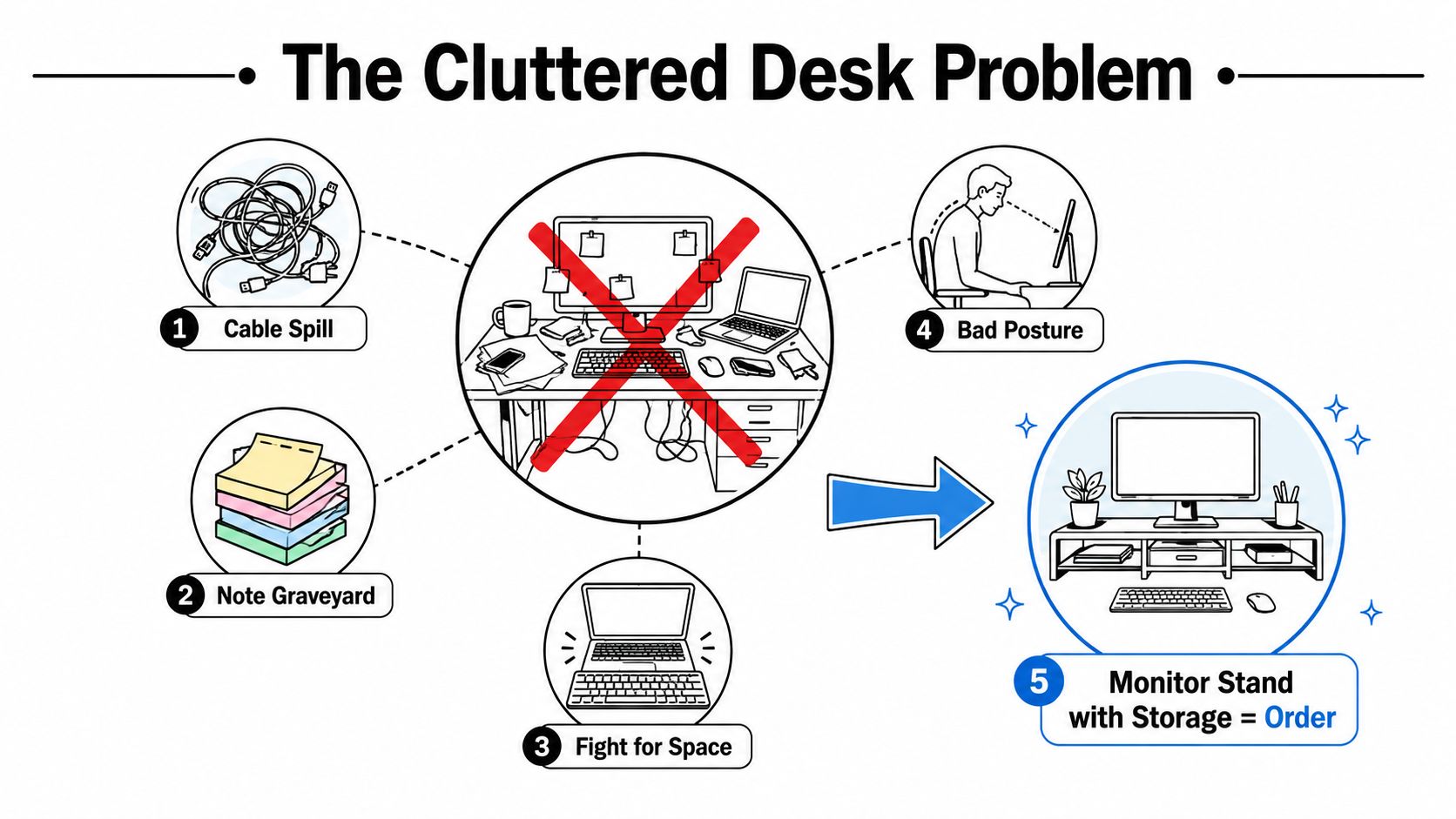
A cluttered desk usually starts with a small compromise that keeps repeating. A charger sits beside the keyboard. A notepad gets pushed under the monitor. The laptop ends up half on, half off the main work surface because there is nowhere else for it to go.
A monitor stand with storage answers that problem by combining two jobs in one piece. It raises the screen and creates compartments, shelves, or drawers underneath for the items that normally spread across the desk. That is the primary appeal. It gives the desktop a clearer layout, so the surface can be used for work instead of serving as a catch-all.
Practical rule: if the items on the desk are always competing for the same flat space, storage under the monitor is often the simplest way to stop the fight.
What changes first
The first change is visual. The monitor sits on a platform instead of directly on the desk, and that opens a defined zone below it for a keyboard, notebook, or small device. A retail example shows how compact that zone can be, with one stand measuring 17.25 inches long, 13.25 inches wide, and 4 inches tall while adding drawer storage and cable management to reduce clutter (Staples product example).
The second change is practical. Less clutter means fewer interrupted motions during the day, because the things used most often have a fixed place. The third change is ergonomic, since the screen is no longer sitting flat at desk level, where it often forces a poor viewing angle.
Storage shape matters here. A low, wide tray may keep a keyboard tucked away without raising the display much, while a deeper drawer stack can eat into clearance and push the screen higher than you want. That is why drawer count alone does not tell the whole story. The geometry of the storage has to fit the height of the monitor, the depth of the desk, and the way you move between devices.
A stand that holds a monitor, a laptop, and a few daily tools can make switching between tasks feel much cleaner. A designer can keep a tablet and stylus under the screen. A remote worker can leave a notebook and docked laptop in reach without scattering them across the desk. For broader home-office setup ideas, how to organize a home office gives useful examples of how small zones can reduce visual noise.
That said, the best fit is not always the tallest stand or the one with the most storage. If the screen ends up too high, a monitor arm with a separate drawer can work better because it keeps the display where your eyes need it and puts supplies somewhere else. A monitor stand with storage helps most when it solves clutter without stealing the viewing height or clearance your setup depends on.
Real-World Benefits Users Notice in the First Week
A first week with a monitor stand with storage rarely feels dramatic in a photo, but it changes the way the desk behaves. The screen settles into a more natural position, the surface stops collecting loose items, and the small interruptions that used to break focus begin to fade. The gain is practical, not decorative.
A typical hybrid-work desk, before and after
Before the upgrade, a hybrid worker often ends up with a laptop angled beside a keyboard, a charging cable looping across the desk, and a sticky note stuck wherever there is room. A stylus goes missing. A notebook slides into the shadow behind the monitor. The desk still works, but it always feels one item away from becoming messy again.
After the upgrade, the same desk feels easier to use. The screen has a fixed place. The laptop or notebook can live under the stand instead of underfoot, and the keyboard no longer has to share space with every accessory at once. That small reordering lowers the number of decisions the user has to make during the day, because the important items now have a predictable home.
Many shoppers focus on how the stand looks from across the room. The benefit shows up when reaching for the cable, the notebook, or the drive that used to wander around the desk. Those little retrievals stop stealing attention. The workspace feels calmer because it behaves more predictably.
A desk gets easier to work at when the things used daily have one obvious place to land.
Why the setup feels less tiring
The visual cleanup matters, but the ergonomic shift matters more. Neutral guidance says the top of the monitor should sit at or slightly below seated eye level, and a buying guide recommends measuring seated eye height and aiming for a riser around 4"–6" for many desks (Best Desk Gear guide). When that height matches the user and the desk, the neck does not have to fight a screen that sits too low.
The same guide also points to a common mistake, adding storage without checking fit. If the stand lifts the display too high, the organized setup can become awkward fast. The best first-week experience comes from a stand that supports the screen properly while still leaving room for the items that live underneath it.
Posture tips for desk setup can help refine the result. The simple version is this, a good stand removes friction from the day before the user even notices the change.
The Core Engineering Tradeoff Between Load Capacity and Clearance
A lot of shoppers get tripped up here because storage sounds like a bonus feature, but it changes the geometry of the stand. A stronger frame can hold more weight, yet that same strength often takes up some of the space that would otherwise stay open beneath the platform. The key question is not whether the stand has storage, it's whether the structure matches the monitor and the things that need to fit below it.
Strength and open space usually pull in opposite directions
Standalone risers can range from about 22 lb to 100 lb in capacity depending on material and construction, while storage-oriented designs typically offer only about 3.3–6.6 inches of vertical adjustment and enough room for a full-size keyboard or laptop to slide underneath (Kensington product guidance). That's the tradeoff in plain English. More support usually means more material, and more material can reduce the open volume under the stand.
A steel or aluminum frame feels solid because it resists flex. Reinforced wood or MDF can also work well if the platform and feet are sized properly. But if the base sits too low or the underside is too shallow, the storage area stops being useful even if the stand looks impressive in photos.
Useful rule of thumb: the stand should support the monitor comfortably, but the clearance underneath has to fit the tallest item that actually needs to live there.
Read the specs like a workspace builder
The first check is load rating. The stand needs to match the monitor's weight with a safety margin, not a guess. The second check is footprint, because the base of the monitor has to sit fully on the platform without overhang. That reduces wobble and helps avoid tipping when a hand hits the desk or when cables get tugged.
The third check is clearance. A keyboard, laptop, or docking station may slide under the stand in theory, but the actual opening has to match the shape of the gear. A stand with a low-profile frame can be better than a heavy one if the setup needs air under the platform or quick access to devices.
The wrong choice is usually the one that optimizes for one spec and ignores the rest. A buyer who only looks at load capacity may end up with a sturdy but cramped riser. A buyer who only looks at open space may end up with a wobbly stand that never feels settled.
Monitor design notes make the point clearly, a monitor stand with storage works best when the support structure and the open area are treated as a single design problem, not two separate features.
Three Storage Styles and the Workflows They Fit Best
The easiest way to narrow the category is to stop comparing random listings and start matching storage style to routine. Some desks need hidden compartments. Some need fast access. Some need the smallest possible footprint because every inch is already spoken for.
| Style | Best For | Typical Under-Stand Clearance | Who It Suits |
|---|---|---|---|
| Drawer style | Pens, chargers, sticky notes, remote controls | Usually lower clearance because the drawer uses internal space | People who want a tidy, distraction-free look |
| Open shelf | Devices that get swapped often, like a laptop in the morning and a notebook later | Usually more open clearance and quick access | Users who reach under the stand often |
| Riser-plus-organizer hybrid | Small desks that need elevation plus a side or front compartment | Varies by layout, often a compact middle ground | Buyers who need storage without a large footprint |
Drawer style
Drawer-style stands make sense when the goal is visual calm. Small items disappear into the drawer instead of sitting in view, so the desk looks cleaner even when the workday gets busy. That's useful for people who keep chargers, pens, paper clips, and notes close at hand but don't want them on display.
The tradeoff is access. A drawer is excellent for hiding clutter, but it's not the fastest option if gear gets pulled out and put back several times a day. It suits a desk where the same tools are used repeatedly and stored in the same place.
Open shelf and hybrid layouts
Open-shelf designs work better for gear that moves often. A laptop can dock in the morning, then slide away when the user switches to a notebook or tablet. The point is speed, not concealment. Nothing has to be lifted out of a compartment before the next item can be used.
Riser-plus-organizer hybrids sit between those two extremes. They keep the platform slim while adding a side or front compartment for the things that matter most. That makes them a good fit for desks that are short on depth but still need a place for daily items. If the routine sounds like “work device here, personal device there, cables somewhere in between,” this style usually deserves a closer look.
How to Measure Your Desk and Choose the Right Size
The best buying decision starts with a tape measure, not a product photo. A monitor stand can look perfect online and still fail at home if the base is too wide, the desk is too shallow, or the height pushes the screen too high for comfortable viewing.
Measure the desk, not just the monitor
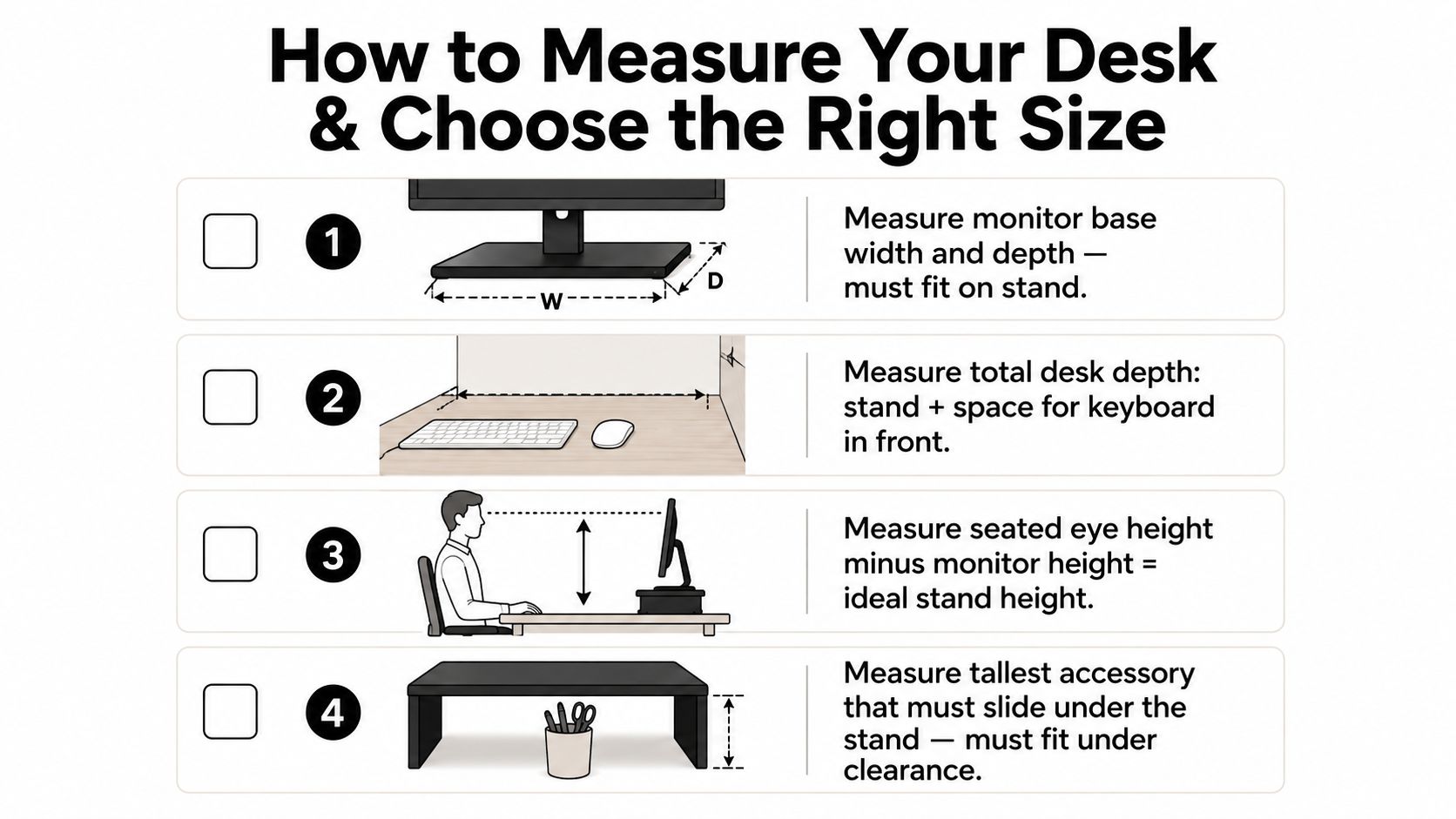
The first measurement is the monitor base footprint. The stand has to support the monitor base width and depth without letting it hang over the edge. If the base overhangs, stability drops and the setup can wobble during typing or cable movement.
The second measurement is total desk depth. A stand may technically fit, but the user still needs room in front of it for a keyboard, mouse, and wrists. A crowded desk can make even a good stand feel cramped.
The third measurement is seated eye height. The top of the screen should sit at or slightly below eye level, and that's where storage can become a problem. A riser that's too tall can make the display sit above a healthy viewing angle, especially on already tall desks or when a laptop is placed on top of the platform.
Check the item that has to slide underneath
The fourth measurement is the tallest object that needs to fit under the stand. That could be a docking station, a vertical tablet, a notebook stack, or a closed laptop. If the clearance is too low, the storage area turns into dead space.
A simple home checklist helps narrow the choice:
- Monitor base fit: Confirm the base sits fully on the stand with no overhang.
- Desk depth: Leave enough room for the stand and the keyboard in front.
- Screen height: Keep the top of the monitor at or slightly below seated eye level.
- Under-stand clearance: Measure the tallest item that needs to slide underneath.
When the desk is already tall, or when a laptop needs to sit on top of the riser, a different setup can make more sense. A monitor arm plus a separate drawer organizer often gives better ergonomic control because the screen height and storage location can be adjusted independently. That's the smarter move when storage would otherwise force the screen too high.
Setting Up Your Stand and Organizing Cables the Right Way
A good stand still needs a clean setup to feel finished. The goal is to place the monitor, route the cables, and load the storage in a way that keeps the desk useful after the initial tidy-up wears off.
Build the layout from the back edge forward
Start by placing the stand flush against the wall or the back edge of the desk. That keeps the platform stable and prevents wasted space behind it. Then route the monitor power and video cables through built-in grommets or hooks before adding anything else to the storage area.
Load the storage logically:
- Daily items first: Put chargers, pens, and small tools in the front drawer or easiest-to-reach space.
- Weekly items next: Store notebooks, backup cables, or accessories in the middle shelf.
- Rarely used gear last: Keep spare drives, adapters, or extra supplies in deeper compartments.
That order matters because the most-used items should never require a full search. If something gets used every day, it needs the fastest path.
Keep devices cool and reachable
A closed compartment can hold a laptop, dock, or streaming device, but airflow still matters. Leaving at least one side open helps heat escape and keeps devices easier to unplug. A fully boxed-in setup might look neat, but it can trap cables and make the gear harder to manage.
Organize once, then stop thinking about it.
That mindset makes the setup sustainable. Once the stand is packed in a logical order, the workspace starts supporting the routine instead of interrupting it. The benefit isn't just cleaner surfaces, it's a desk that stays understandable even when the week gets busy.
Matching the Stand to Multi-Device and Work-From-Home Setups
A single-monitor desk is only one version of the story. Many people are juggling a laptop dock, an external display, a tablet, or even a work screen beside a console. In those setups, the stand has to do more than lift a monitor, it has to help the desk adapt.
A hybrid desk that changes roles during the day
A remote worker might start the morning with a laptop plugged into a dock and an external monitor above it. Later, the same desk may need to support note-taking, calls, or a creative task on a tablet. In the evening, the hardware might shift again for streaming or gaming.
Wider-span and modular stands handle that kind of movement better than a fixed, tiny riser. Dual-monitor platforms can create a shared base for two screens, while accessory compartments keep the dock, cable, and notebook from drifting across the desk. That flexibility matters because a workspace that changes roles should not need a complete rebuild each time.
The same logic helps gift buyers. A monitor stand with storage is a thoughtful upgrade for a friend who works from home, a student setting up a dorm desk, or anyone whose workspace shows the pressure of daily life. It feels practical because it solves an obvious problem, but it also feels personal because it improves a setup the person uses every day.
A good desk gift is the one the recipient uses immediately, not the one that sits in a closet waiting for a better moment.
The category is also crowded with mass-market options, especially in the affordable range. In one Amazon dataset, the $20–$50 band contained 292 ASINs, or 46.35% of the set, while 75.77% of the ASINs carried ratings between 4.3 and 4.7, which shows how much buyers compare price and quality in this space (ASINsight report). A current retail listing also shows that the under-monitor area can hold more than one type of gear at once, including a keyboard, DVD player, gaming console, streaming device, receivers, notebooks, and pens (DIY product example).
A buyer who chooses carefully ends up with a stand that supports work, downtime, and everything in between. That's the true value of storage-integrated design, it gives the desk one structure that can handle more than one routine without turning chaotic.
Granted Solutions curates practical workspace upgrades that fit real desks, real routines, and real budgets, including problem-solving accessories that make daily setups easier to live with. If a monitor stand with storage sounds like the next smart move, visit Granted Solutions and explore practical picks that can help turn a cluttered desk into a workspace that feels more organized, more useful, and easier to enjoy.
Leave a comment